Compress JPEG
Shrink JPG and JPEG photos with a quality slider or an exact target size in kilobytes.
Compress JPEG
Re-encode existing WebP files, or drop in JPEG and PNG images to convert them. All of it happens on this device.
WebP files are accepted, and so are JPG and PNG if you want to convert them to WebP. Paste from clipboard with Ctrl+V (Cmd+V on a Mac).
Keep the original format, or convert on the way out to compare which one is smallest.
Removes camera model, timestamps and GPS coordinates from the output.
Compress without changing the pixel size of the image.
Only used when the output format cannot store an alpha channel.
Ready. Add a file to begin.
Quality mode · WebP output · 0 files
No files yet. Results will appear in this table as soon as you add one.
Your files are processed by your own browser. Nothing is uploaded to a server, so nothing can be stored, read or shared.
More tools
Each one runs in the browser the same way, with no upload and no account.
Shrink JPG and JPEG photos with a quality slider or an exact target size in kilobytes.
Compress JPEGReduce PNG screenshots and graphics while keeping transparency and hard edges intact.
Compress PNGChange pixel dimensions by width, height or percentage, with the aspect ratio locked.
Resize an imageCombine several photos into one PDF, reorder the pages and choose paper size and margin.
Build a PDFWrite a formatted document in the browser and export it to PDF, DOCX or HTML.
Open the editorSpecification
Every capability written out as text, including the ones where the answer is no. A specification that only listed the wins would not be worth reading.
| Attribute | This tool |
|---|---|
| Supported input formats | WebP, JPG, PNG |
| Output formats | WebP, JPEG, PNG |
| Compression type | LossyA browser canvas writes lossy WebP. For mathematically lossless output use PNG. |
| Quality control | Adjustable, 10 to 100Maps directly to the encoder's quality setting. Moving it genuinely changes the output. |
| Exact output file size | Yes — target in KBThe encoder searches for the highest quality that fits under your limit, then reports the size it actually reached. |
| Resize / image dimensions | Yes — max width and heightAspect ratio preserved. The resizer page adds exact pixel and percentage modes. |
| Batch / bulk processing | UnlimitedFiles are encoded in parallel across a Web Worker pool and can be downloaded as one ZIP. |
| Maximum file size | No limit set by this siteBounded in practice by your device's memory, since each image is held uncompressed while it is processed. |
| EXIF and metadata | Stripped by defaultCamera model, timestamps and GPS coordinates are removed. You can switch it off. |
| Transparency / alpha channel | Fully preservedWebP carries a full alpha channel in both directions, so transparency survives conversion from PNG. |
| Chroma subsampling control | Not availableThe browser's encoder chooses it and exposes no setting. We will not add a control that cannot affect the output. |
| Progressive JPEG control | Not availablecanvas.toBlob gives no control over progressive encoding. Use MozJPEG or ImageMagick if you need it. |
| Color profile handling | Converted to sRGBA browser canvas works in sRGB, so wide-gamut images are converted. Correct for the web, wrong for print masters. |
| Bit depth | 8 bits per channelThe maximum a browser canvas provides. HDR and 10-bit output need AVIF, which browsers cannot write. |
| Animation support | Not supportedA canvas decodes only the first frame of an animated file, so animation is out of scope rather than half-supported. |
| Where processing happens | In your browserNo upload endpoint exists in the compression path. Disconnect from the network after the page loads and it still works. |
| File retention | None — nothing is receivedThere is no copy to retain or delete, because no file is ever transmitted. |
| Watermark | NeverThe output contains your image and nothing else. |
| Account, quota or cost | NoneNo sign-up, no daily cap, no paid tier withholding a feature. |
| Browser support | Chrome, Edge, Firefox, SafariDesktop and mobile. Requires Canvas and Web Workers, which every current browser provides. |
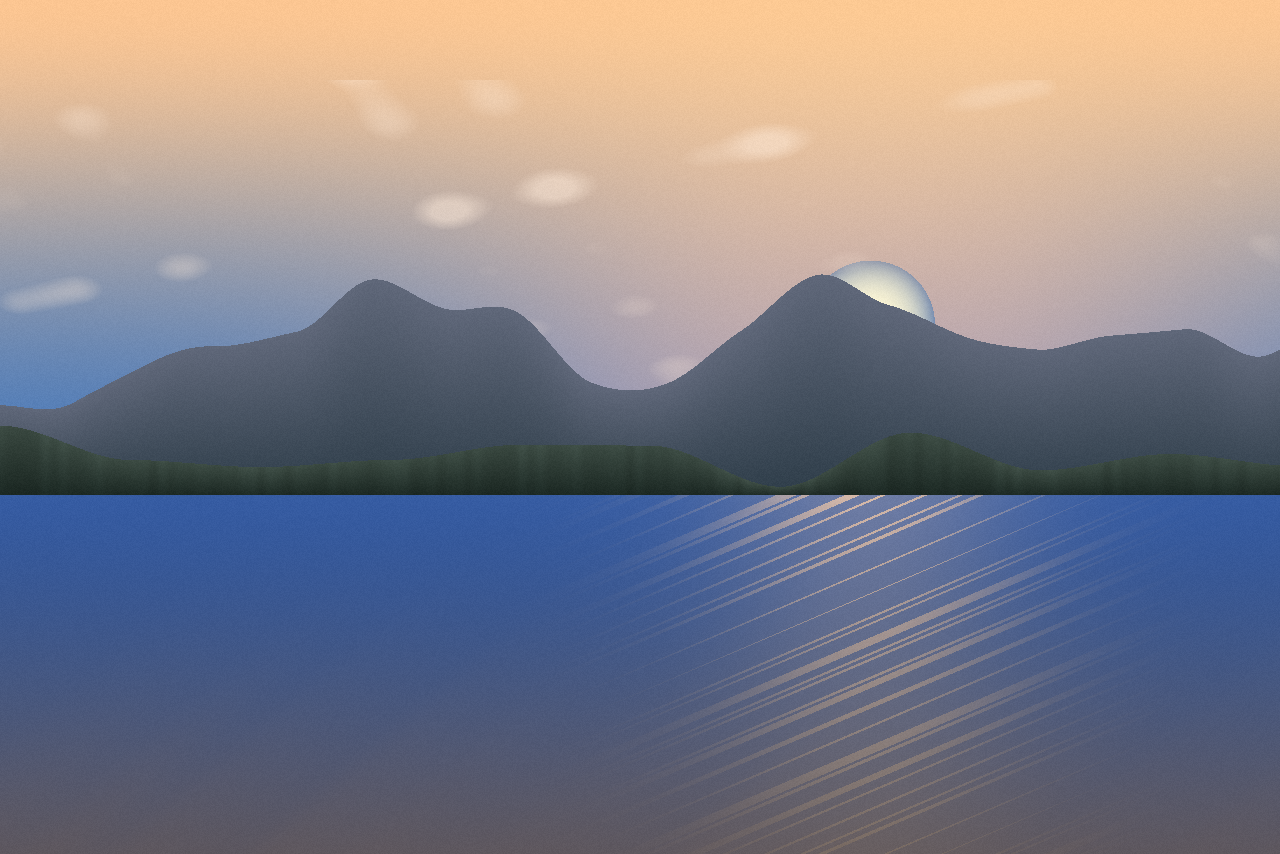
Drag the handle to compare, and zoom in to inspect the detail at full size.
How it works
Drag files onto the drop zone, click it to browse, or paste an image straight from the clipboard. Batches of any size are fine.
Pick a quality level, an exact target size in kilobytes, or a maximum width and height. Defaults are tuned for the web if you would rather not change anything.
Every file is listed with its old size, new size and percentage saved. Save them one at a time or grab the whole batch as a ZIP archive.
Features
Queue as many WebP files as you like. A Web Worker pool runs them in parallel, so a large batch never freezes the page.
The slider maps straight to the encoder setting. Move it and the output genuinely changes — nothing here is cosmetic.
Ask for 200 KB and the encoder finds the highest quality that fits, then reports the size it achieved.
Camera model, timestamps and GPS coordinates are removed on the way out — worth doing before publishing a phone photo.
Write the result as JPEG, PNG or WebP whatever you put in, so you can test which is smallest.
The whole pipeline runs in your browser through the Canvas API. Disconnect your network after the page loads and it still works.
The output is your image and nothing else. There is no account, no daily quota and no paid tier holding back a feature.
The layout, the drop zone and the results table are all usable on a phone, and mobile browsers run the same encoder as the desktop ones.
In depth
JPEG divides an image into 8 × 8 blocks and describes each one with a discrete cosine transform. WebP's lossy mode borrows from video coding instead: it predicts each block from the pixels already decoded above and to the left of it, and then stores only the difference between the prediction and reality.
Because most of an image is fairly predictable from its neighbors, that difference is usually small, and small numbers cost few bits. This is why WebP reaches the same apparent quality as JPEG in roughly a quarter fewer bytes, and why it degrades more gracefully at low quality — it blurs rather than breaking into visible 8 × 8 squares.
WebP also carries an alpha channel and a lossless mode that JPEG has never had, which is what lets one format replace both JPEG and PNG on a web page.
Lossless compression rewrites the file so every pixel survives exactly — decode it and you get the original back, byte for byte. PNG, GIF, lossless WebP and ZIP all work this way.
Lossy compression discards detail on purpose. JPEG converts the image to a frequency representation and throws away the high-frequency detail your eye is least likely to miss. That is irreversible, and it is how lossy reaches sizes lossless cannot: a photograph saved as PNG is routinely five to ten times larger than the same photograph as JPEG.
Neither is better. Photographs suit lossy encoding; screenshots, logos and line art suit lossless, because lossy encoders leave haloes around hard edges.
The quality number is not a percentage. It is an index into quantization tables that control how aggressively detail is discarded, and its relationship to file size is steep and non-linear.
Returns diminish fast at the top: 100 to 90 usually halves the file for no perceptible change, 90 to 80 saves far less. If you remember one number, use 80.
Human vision resolves brightness far more finely than color. JPEG and WebP split the image into one luma (brightness) channel and two chroma (color) channels, then store the chroma at reduced resolution.
The failure case: red or blue text on a contrasting background smears and fringes under 4:2:0. If a screenshot with colored text looks dirty, that is chroma subsampling rather than quality — and a hint the image should be PNG or WebP.
JPEG has no alpha channel and cannot store transparency. Converting a transparent PNG forces those pixels to become something, and most tools fill them with black — which is why a logo exported to JPEG arrives in an unwanted dark box. Keep it as PNG, use WebP (alpha support, typically 25–35% smaller than PNG), or flatten onto a chosen background deliberately.
Color is the other gap. Screens mix additively in RGB; printing presses mix subtractively in CMYK, and converting between them always approximates. A CMYK JPEG is converted to RGB before a browser can display it, and saturated cyans and deep blues can shift noticeably. Compress and resize in RGB for screens, and keep a separate CMYK master for print.
Every time a JPEG is decoded, edited and saved, the encoder re-runs quantization on data already quantized. Errors from the previous pass are treated as real detail and collect new errors on top. This is generation loss, and it only accumulates.
Re-saving at quality 90 restores nothing; it spends more bytes preserving the earlier pass's artifacts. Compress from the highest-quality original you have, and settle on one output size in a single pass rather than nudging quality down and re-saving.
Questions
Every answer below is present in the page source, expanded, so it can be read without opening anything.
WebP is an image format developed by Google that handles both lossy and lossless compression and supports transparency and animation. At matched visual quality it is typically 25–35% smaller than JPEG and 20–30% smaller than PNG, which makes it the best default for images on a web page today.
Effectively yes. Chrome, Edge, Firefox, Opera and Safari have all supported it for years, including on iOS. The remaining gap is old desktop software and some email clients, so if an image is going into an email newsletter or being handed to a print shop, send a JPEG instead.
Yes, and that is the most common use of this page. Drop in JPEGs or PNGs, leave the output format on WebP, and you get WebP files back. Transparency from a PNG is preserved, because WebP supports an alpha channel.
It can be either. This tool writes lossy WebP, because that is what your browser's canvas encoder produces, and the quality slider genuinely controls it. If you need mathematically lossless output, use PNG on the Compress PNG page — no label on this site will tell you a lossy encode is lossless.
Between 75 and 80 for most web images. WebP holds up better than JPEG at the lower end of the scale, so a WebP at 75 usually looks like a JPEG at 82 while being noticeably smaller. Above 90 the file grows sharply for very little gain, as with any lossy encoder.
Only if it was saved at a high quality or has larger pixel dimensions than you need. Re-encoding an already-lossy WebP incurs generation loss, the same as it does with JPEG, so you are trading visible quality for the saving. Compressing from the original JPEG or PNG gives a better result than compressing a WebP twice.
Yes, a full 8-bit alpha channel, the same as PNG. That is what makes it a genuine replacement for PNG on the web rather than only for JPEG — you can have a transparent logo at a fraction of the PNG file size.
This tool works on still images only. An animated WebP dropped in here would be reduced to its first frame, so it is not something we recommend doing. There is no hidden animation feature and none is advertised.
No. Encoding is done by your own browser through the Canvas API, in this tab, on this device. Nothing is sent anywhere, and the page continues to work with the network disconnected.
Usually because the quality setting is too high for the content, or because the source JPEG was already heavily compressed and the WebP encoder is now faithfully preserving its artifacts. Try a quality around 75, and always encode from the highest-quality original you have rather than from a file that has already been through a compressor.
You can convert a WebP to JPEG on this page by changing the output format, but understand what that is: a second lossy encode of an already lossy image. It will be slightly worse than the WebP and probably larger. Convert from your original whenever you still have it.
It is still the safest pattern, using a <picture> element with a WebP source and a JPEG fallback, and it costs nothing but a little markup. Given current browser support you can also serve WebP alone for most audiences — check your own analytics rather than a general recommendation.
Related topics
Related concepts, formats and guides across the site. Every link goes to a page that covers the term properly.
From the blog
Longer explanations from the blog.
WebP produced a 27.0 KB file against MozJPEG's 41.1 KB on the same photograph at slightly higher measured fidelity — 34% smaller. It also produced a larger file than JPEG on random noise. The advantage is real and content-dependent.
9 min read
Resize before you compress. Measured on one photograph: half the width at quality 80 produced a 16.4 KB file, while full width at quality 40 produced 20.6 KB and looked far worse. The order of operations matters more than the settings.
8 min read
PNG stored the same photograph in 1274.1 KB where JPEG needed 67.5 KB — nineteen times larger. On a flat graphic PNG won. On a smooth gradient PNG lost to JPEG by a factor of two, which surprises most people.
9 min read